개발 환경
Firebase 사용 안함 Expo 사용 React Native 0.77 이상 @react-native-google-signin/google-signin 라이브러리 사용
들어가기 전에
RN EXPO로 어플 만들다보면, AI는 공식문서에 있는 라이브러리로 코드를 알려주는데 그러다보면 auth-session으로 알려준다
또는 구글링 하다보면 auth-session으로 구글 로그인을 진행한 사람이 있는데, 이건 옛날 게시물일 경우가 허다함
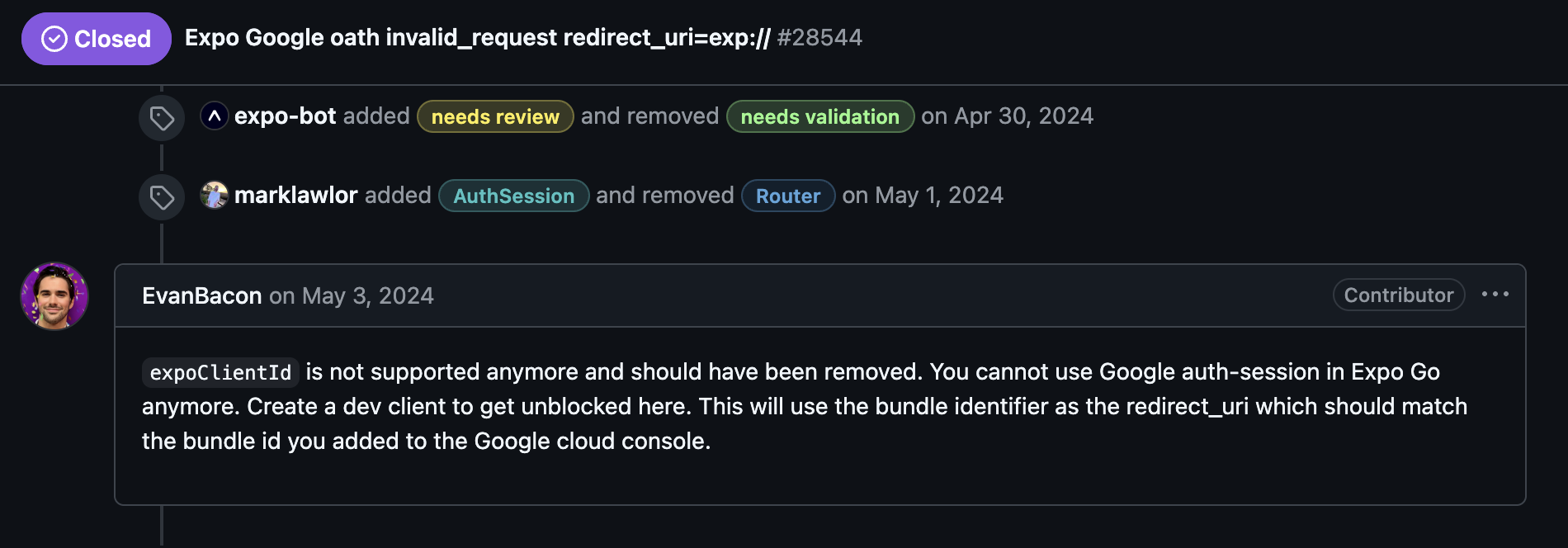
이거 보면 " You cannot use Google auth-session in EXPO Go anymore "
처음 auth-session 으로 진행 하던 중 redirect_uri_match 오류가 계속 생겨서 5시간 동안 삽질하다가 같은 오류의 expo 이슈를 발견하게 되었다
더 이상 Google auth-session은 EXPO Go 에서 사용할 수 없다고 되어있음
따라서 다시 정신을 부여잡고
사용하기 로 함
Google Cloud
https://console.cloud.google.com/ 우선 여기서 프로젝트 생성을 해야함
만드는 방법은 Web Client랑 iOS Client 만들면 되는데 이건 구글링하면 금방나오니 패스
Web Client
승인된 JavaScript 원본 : https://auth.expo.io
승인된 리디렉션 URI : https://auth.expo.io/{@expo에 등록된 나(whoami 명령어 있음)}/{slug}
혹시 모르니 서버 리다이렉트 uri도 넣는거 추천!
iOS Client
번들 Id는 : app.json 보면 bundleIdentifier이나, package 보면 com.xxxxx.xxxx 이렇게 되어 있는게 있는데 그거 넣으면 된다 !
모든 설정이 끝났으면
1... 생략2// ++ 이 부분 추가하세요.3GoogleSignin.configure({4 webClientId: GOOGLE_CLIENT_ID_WEB,5 iosClientId: GOOGLE_CLIENT_ID_IOS,6 scopes: ['email', 'profile'],7 offlineAccess: false,8 forceCodeForRefreshToken: false,9});android는 GoogleSignIn에서 webClientId로 받아온다
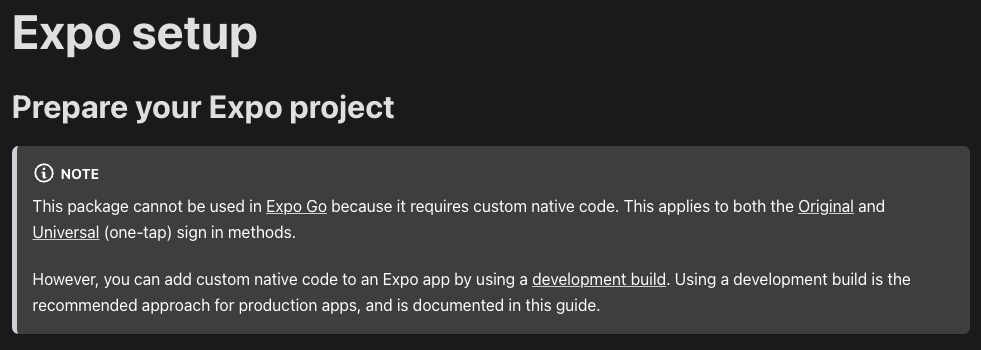
만약에 지금까지 그냥 npx expo start로 실행했다면, 이제 안될거다
GoogleSignIn은 expo를 지원 안하기 때문에 development build 해야함
expo로 개발하면 환경설정 많이 안할 줄 알았는데 결국 하게 되는 현실
development build
1# 먼저 개발 빌드 생성2npx expo install expo-dev-client3
4# iOS development build 생성5eas build --profile development --platform ios6
7# Android development build 생성8eas build --profile development --platform Android
Google Sign-In 코드 예제
1// hooks/useGoogleAuth.ts2import { useState, useEffect } from 'react';3import { GoogleSignin, statusCodes } from '@react-native-google-signin/google-signin';4
5interface GoogleUser {6  id: string;7  name: string;8  email: string;9  photo?: string;10}11
12export const useGoogleAuth = () => {13  const [user, setUser] = useState<GoogleUser | null>(null);14  const [loading, setLoading] = useState(false);15  const [error, setError] = useState<string | null>(null);16
17  useEffect(() => {18    // Google Sign-In 초기 설정19    GoogleSignin.configure({20      // iOS 클라이언트 ID21      iosClientId: '584178392628-loms8bh6egsfr1q2fl9om43i9i51530g.apps.googleusercontent.com',22      // 웹 클라이언트 ID (Firebase 콘솔에서 확인)23      webClientId: 'YOUR_WEB_CLIENT_ID.apps.googleusercontent.com',24      // 추가 설정25      offlineAccess: true,26      hostedDomain: '',27      forceCodeForRefreshToken: true,28    });29
30    // 현재 로그인 상태 확인31    checkCurrentUser();32  }, []);33
34  const checkCurrentUser = async () => {35    try {36      const isSignedIn = await GoogleSignin.isSignedIn();37      if (isSignedIn) {38        const userInfo = await GoogleSignin.getCurrentUser();39        if (userInfo?.user) {40          setUser({41            id: userInfo.user.id,42            name: userInfo.user.name || '',43            email: userInfo.user.email,44            photo: userInfo.user.photo || undefined,45          });46        }47      }48    } catch (error) {49      console.error('현재 사용자 확인 실패:', error);50    }51  };52
53  const signIn = async () => {54    try {55      setLoading(true);56      setError(null);57
58      // Google Play Services 확인 (Android)59      await GoogleSignin.hasPlayServices();60      61      // 로그인 실행62      const userInfo = await GoogleSignin.signIn();63      64      if (userInfo?.user) {65        const googleUser: GoogleUser = {66          id: userInfo.user.id,67          name: userInfo.user.name || '',68          email: userInfo.user.email,69          photo: userInfo.user.photo || undefined,70        };71        72        setUser(googleUser);73        return googleUser;74      }75    } catch (error: any) {76      console.error('Google 로그인 실패:', error);77      78      if (error.code === statusCodes.SIGN_IN_CANCELLED) {79        setError('로그인이 취소되었습니다.');80      } else if (error.code === statusCodes.IN_PROGRESS) {81        setError('로그인이 진행 중입니다.');82      } else if (error.code === statusCodes.PLAY_SERVICES_NOT_AVAILABLE) {83        setError('Google Play Services를 사용할 수 없습니다.');84      } else {85        setError('로그인 중 오류가 발생했습니다.');86      }87    } finally {88      setLoading(false);89    }90  };91
92  const signOut = async () => {93    try {94      setLoading(true);95      await GoogleSignin.signOut();96      setUser(null);97    } catch (error) {98      console.error('로그아웃 실패:', error);99      setError('로그아웃 중 오류가 발생했습니다.');100    } finally {101      setLoading(false);102    }103  };104
105  const revokeAccess = async () => {106    try {107      setLoading(true);108      await GoogleSignin.revokeAccess();109      setUser(null);110    } catch (error) {111      console.error('액세스 철회 실패:', error);112      setError('액세스 철회 중 오류가 발생했습니다.');113    } finally {114      setLoading(false);115    }116  };117
118  return {119    user,120    loading,121    error,122    signIn,123    signOut,124    revokeAccess,125    isSignedIn: !!user,126  };127};128
129// components/GoogleSignInButton.tsx130import React from 'react';131import { TouchableOpacity, Text, View, ActivityIndicator } from 'react-native';132import { useGoogleAuth } from '../hooks/useGoogleAuth';133
134export const GoogleSignInButton: React.FC = () => {135  const { user, loading, error, signIn, signOut, isSignedIn } = useGoogleAuth();136
137  if (loading) {138    return (139      <View className="flex-row items-center justify-center bg-white border border-gray-300 rounded-lg px-6 py-3">140        <ActivityIndicator size="small" color="#4285F4" />141        <Text className="ml-2 text-gray-600">처리 중...</Text>142      </View>143    );144  }145
146  if (isSignedIn && user) {147    return (148      <View className="bg-white border border-gray-300 rounded-lg p-4">149        <Text className="text-gray-800 font-semibold">안녕하세요, {user.name}님!</Text>150        <Text className="text-gray-600 text-sm">{user.email}</Text>151        {error && <Text className="text-red-500 text-sm mt-2">{error}</Text>}152        <TouchableOpacity153          onPress={signOut}154          className="mt-3 bg-red-500 rounded-lg px-4 py-2"155        >156          <Text className="text-white text-center font-semibold">로그아웃</Text>157        </TouchableOpacity>158      </View>159    );160  }161
162  return (163    <TouchableOpacity164      onPress={signIn}165      className="flex-row items-center justify-center bg-white border border-gray-300 rounded-lg px-6 py-3 shadow-sm"166      disabled={loading}167    >168      {/* Google 아이콘 */}169      <View className="w-5 h-5 mr-3">170        <Text>🔵</Text> {/* 실제로는 Google 아이콘 이미지 사용 */}171      </View>172      <Text className="text-gray-700 font-semibold">Google로 로그인</Text>173      {error && (174        <View className="mt-2">175          <Text className="text-red-500 text-sm">{error}</Text>176        </View>177      )}178    </TouchableOpacity>179  );180};181
182// app/(auth)/login.tsx - 로그인 화면 예제183import React from 'react';184import { View, Text, SafeAreaView } from 'react-native';185import { GoogleSignInButton } from '../../components/GoogleSignInButton';186
187export default function LoginScreen() {188  return (189    <SafeAreaView className="flex-1 bg-white">190      <View className="flex-1 justify-center items-center px-6">191        {/* 앱 로고 */}192        <View className="mb-12">193          <Text className="text-4xl font-bold text-center mb-2" style={{ color: '#58CC02' }}>194            🌱 쑥쑥약속195          </Text>196          <Text className="text-gray-600 text-center">197            부모와 아이가 함께 성장하는{'\n'}약속 관리 앱198          </Text>199        </View>200
201        {/* Google 로그인 버튼 */}202        <View className="w-full">203          <GoogleSignInButton />204        </View>205
206        {/* 추가 정보 */}207        <View className="mt-8">208          <Text className="text-gray-500 text-sm text-center">209            로그인 후 부모와 아이 계정을{'\n'}연결할 수 있습니다210          </Text>211        </View>212      </View>213    </SafeAreaView>214  );215}
필요한 패키치 설치
1# Google Sign-In 패키지 설치2npm install @react-native-google-signin/google-signin3
4# Development client 설치 (이미 설치했다면 생략)5npx expo install expo-dev-client
EAS Build Profile 설정
이건 쉽게 생각하면, expo로 시작했으니, react native cli 초기 설정을 한다고 생각하면 됨
1// 예시2{3 "cli": {4 "version": ">= 0.52.0"5 },6 "build": {7 "development": {8 "developmentClient": true,9 "distribution": "internal",10 "ios": {11 "resourceClass": "m1-medium"12 }13 },14 "preview": {15 "distribution": "internal"16 },17 "production": {}18 }19}이렇게 설정하면 firebase 없이 구글 로그인 성공 !